No products in the cart.
Return To ShopStep 2: Create a Server-to-Server OAuth App
After creating an account, you must create an app that will connect JayEm Learning Center to Zoom.
Step 1: Go to the Zoom App Marketplace Developer Dashboard (https://marketplace.zoom.us/develop/create) and log in with your Zoom account.
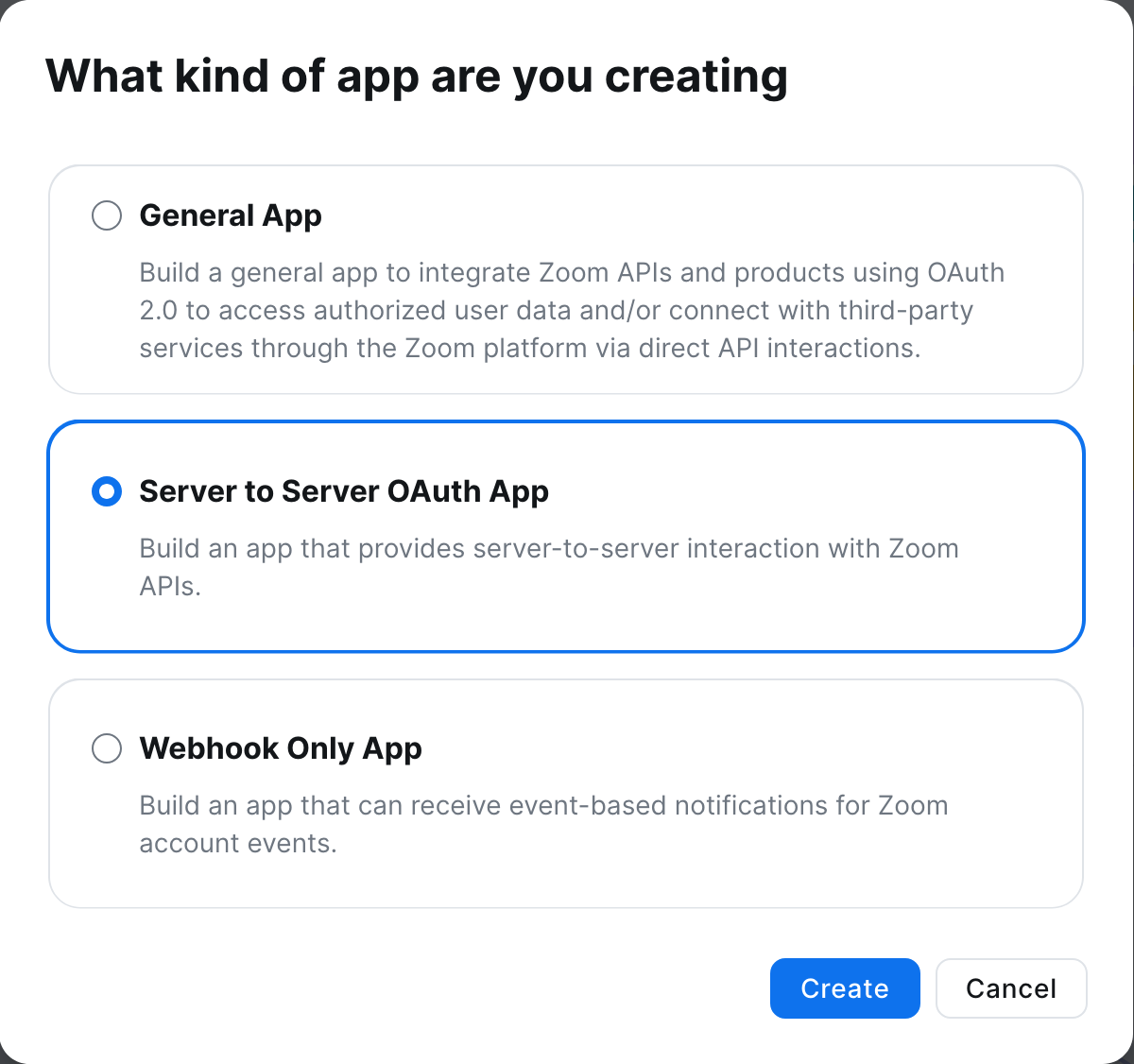
Step 2: Scroll down to find Server-to-Server. Click on “Create” under the Server-to-Server OAuth app type.
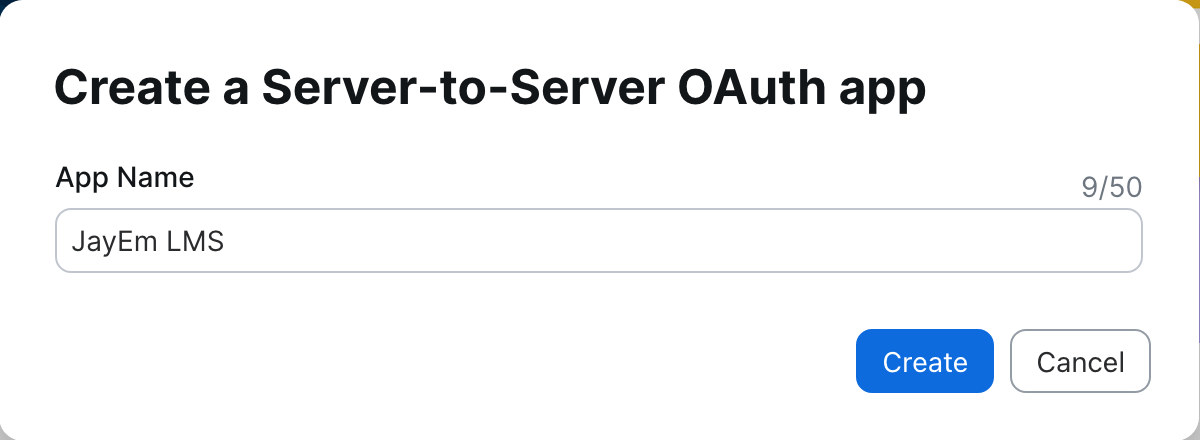
Step 3: Fill in the App Name field and click on Create.
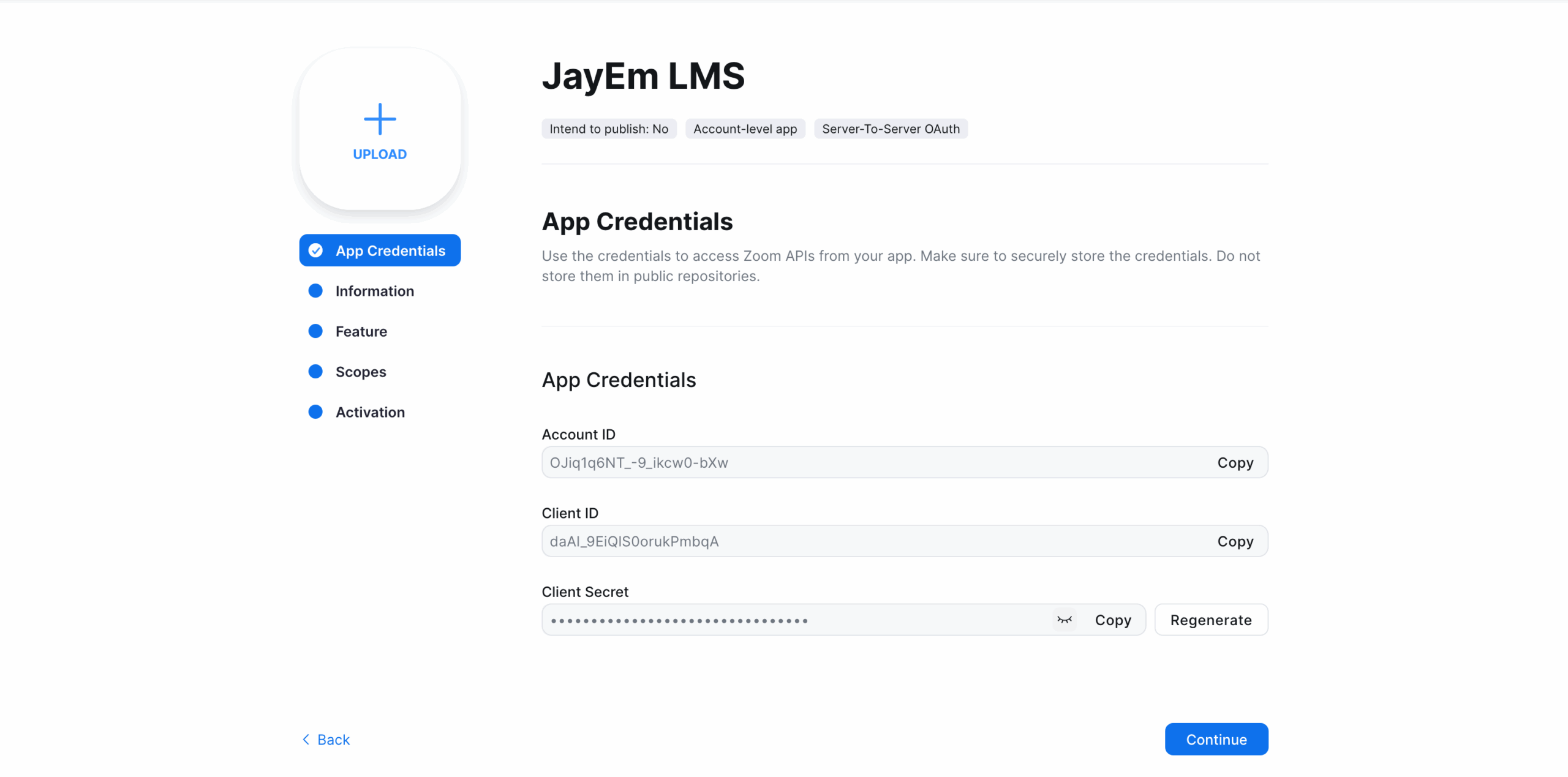
This will take you to the App credentials page. But first, you need to fill in the required Information & Scopes to Activate your app.
Step 3: Setup Zoom Configuration
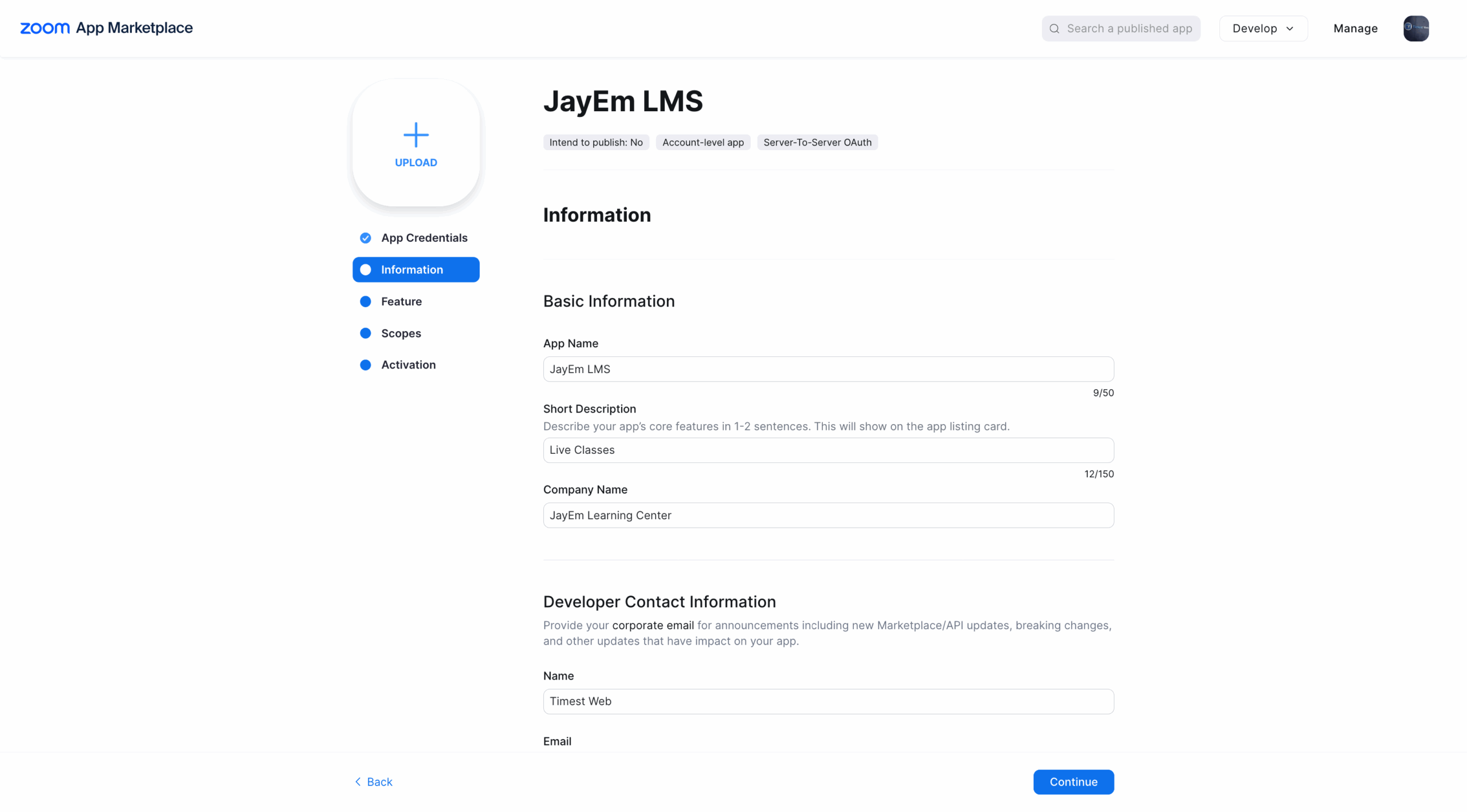
Step 1: Go to Information to set your Company Name and Developer Contact Information, i.e. your name and email address. Skip the Features Tab
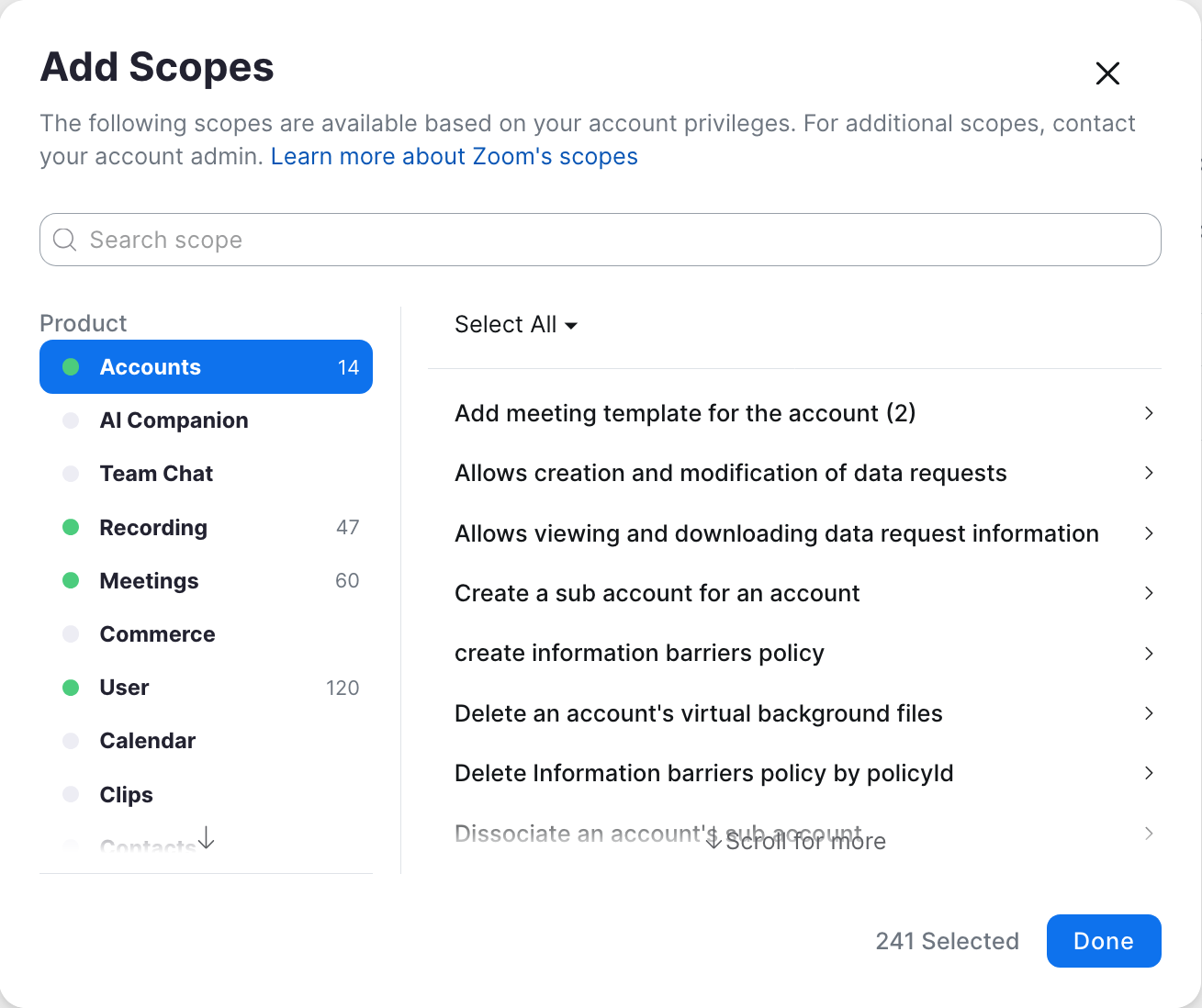
Step 2: Go to Scopes and configure your app’s necessary scopes based on your Tutor LMS integration requirements. We recommend you select the required scopes for Meeting, Webinar, Recording, and User.
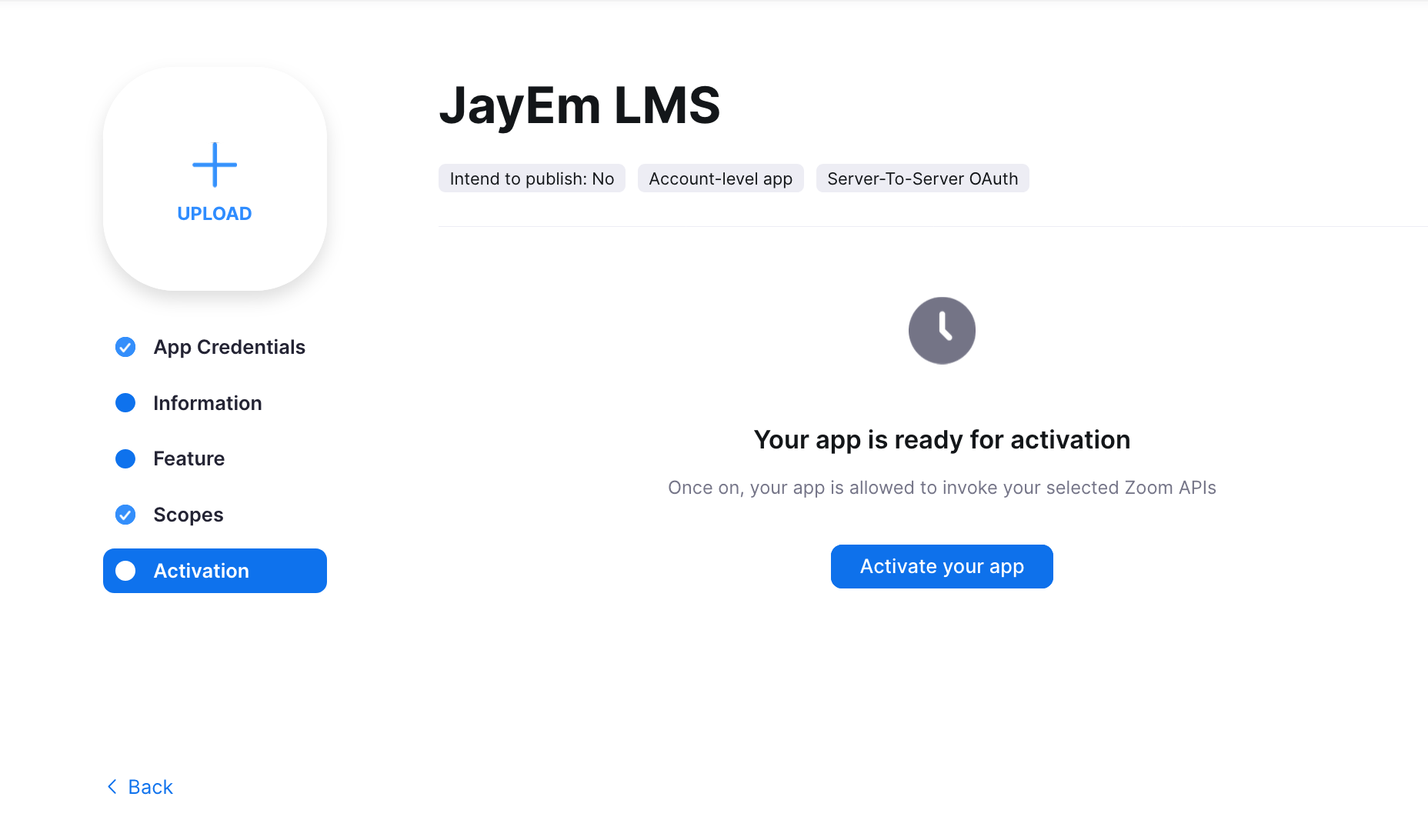
Step 3: Go to Activation, and activate your app.
Step 4: Obtain the App Credentials
Step 4: Once your Server-to-Server OAuth app is activated, Go to App Credentials to obtain the Account ID, Client ID, and Client Secret. Keep these credentials handy as you will need them in the following step.
Step 5: Connect Zoom to JayEm LMS
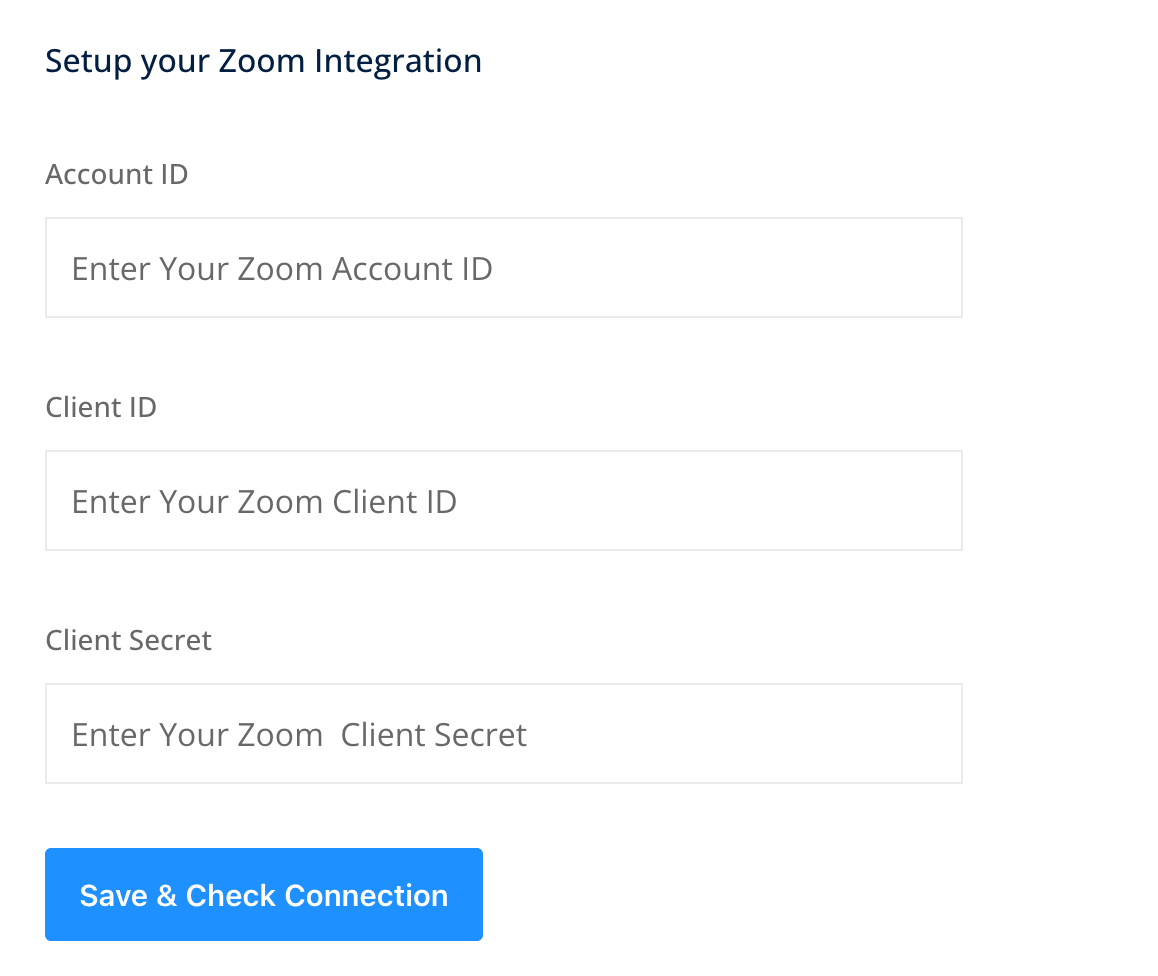
Finally, the last step is to connect Zoom to JayEm LMS Account Dashboard. To do this, head over to your dashboard, and navigate to Dashboard > Zoom > Set API.